
AI in digital marketing: what actually works right now
Where AI genuinely saves marketers time on real client work, and where it quietly makes things worse.
Read article →
Learning how to install Claude skills takes about five minutes once you know where things go. A skill is a small folder of instructions that Claude opens only when a task needs it. If you are new to the idea, start with our guide on what Claude skills are and how they work. This post shows you, step by step, how to add skills to Claude in the app, add skills to Claude Code on your computer, install skills from GitHub, check that a skill is working, and switch it off again.
Think of a skill as a recipe card. Claude keeps a short label for every card in view, and pulls out the full card only when your request matches it.
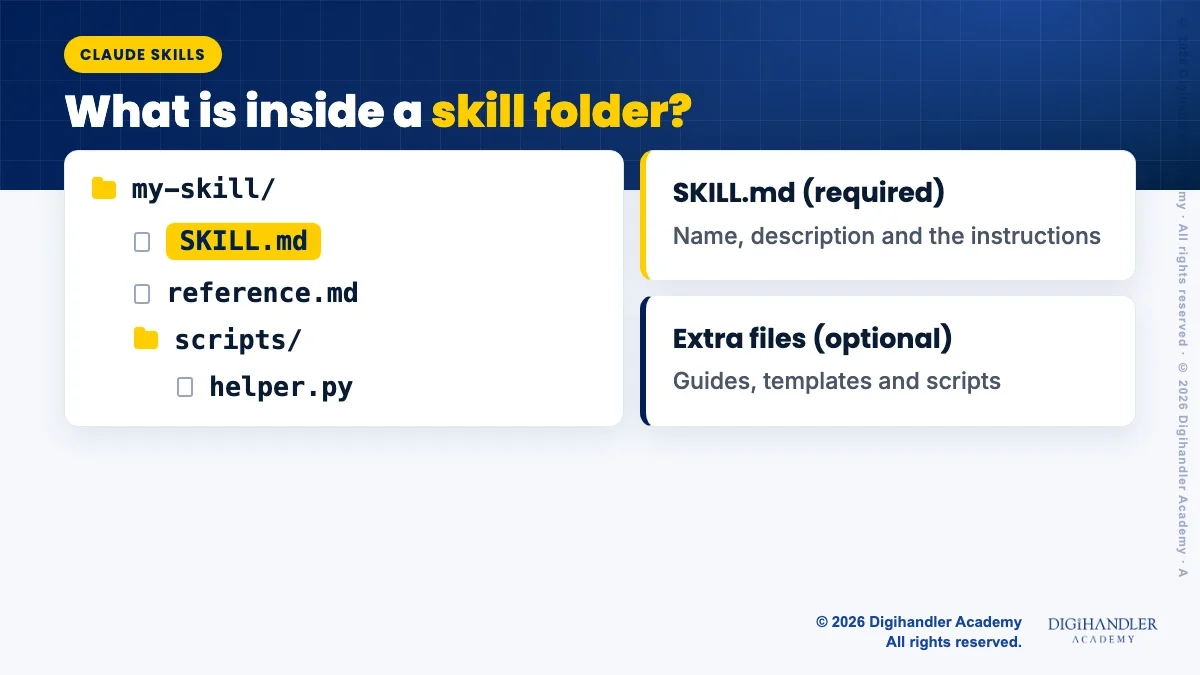
On disk, a skill is just a folder. Inside it there is one required file called SKILL.md. The top of that file holds a name and a short description. The description is what Claude reads to decide when to use the skill.
A skill folder can also hold extra guides, templates and small scripts. That is why you should know where a skill came from before you install it. More on that at the end.
According to Anthropic's Help Center, skills work on the Free, Pro, Max, Team and Enterprise plans. They need one setting switched on first: code execution. Skills run inside Claude's code environment, so without it they cannot load.
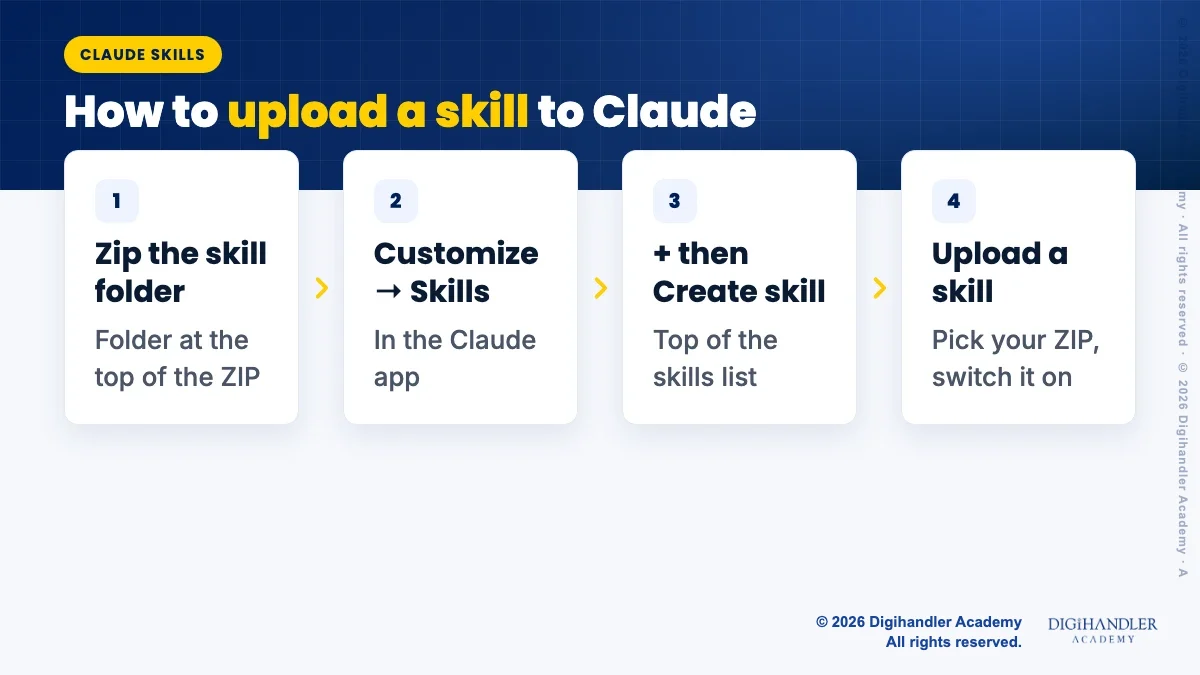
If you have a skill folder of your own, or one you downloaded, you upload it as a ZIP file. The one rule that trips people up: the skill folder must sit at the top of the ZIP, not inside another folder. The folder name should also match the skill's name.
If you want to write a skill from scratch first, follow our guide to create your own Claude skill without coding, then come back here.
You do not need to install anything to use Anthropic's own document skills in the Claude app. Anthropic provides skills for Excel, Word, PowerPoint and PDF files. Once code execution is on, Claude uses them by itself when your request needs them.
For example, ask "Make me a five-slide PowerPoint on our spring course batch" and Claude will pick up the PowerPoint skill on its own.
Anthropic also publishes a set of example skills on GitHub at github.com/anthropics/skills. They cover things like brand guidelines, internal communications, web app testing and a skill that helps you build new skills. Anthropic notes these are for demonstration and learning, so test them before you rely on them for important work.
Claude Code does not use ZIP uploads. It reads skills straight from folders on your computer. You only need to put the skill folder in the right place.
There are two places to choose from. A personal skill lives in your home folder and works in every project on your computer. A project skill lives inside one project folder and works only there. Project skills are handy for teams, because anyone who gets the project gets the skill too.
Here are the exact paths. The ~ sign is short for your home folder, for example /Users/yourname on a Mac.
mkdir -p ~/.claude/skills and pressing Enter.~/.claude/skills/your-skill/SKILL.md.claude. If it was already open, it usually picks up the new skill straight away. If you created the skills folder for the first time during the session, type /reload-skills once./skills to see the list of skills Claude Code has found.Personal (all your projects):
~/.claude/skills/<skill-name>/SKILL.md
Project (this project only):
<your-project>/.claude/skills/<skill-name>/SKILL.mdMost shared skills live on GitHub. There are two ways to install them in Claude Code. The easiest is the plugin route, because Claude Code downloads and updates everything for you. A plugin is simply a package that can bundle one or more skills, and a marketplace is a catalog of plugins.
Route 1, plugins. Anthropic's own skills repository is set up as a marketplace. Inside Claude Code, type these two commands, one at a time. The second one opens the plugin's details, where you choose who gets it and confirm the install:
/plugin marketplace add anthropics/skills
/plugin install example-skills@anthropic-agent-skills/plugin on its own to open a panel where you can search plugins, read what each one adds before you install it.claude-plugins-official, for you the first time you start it in a terminal. You can also browse plugins at claude.com/marketplace.~/.claude/skills/. For example, run git clone https://github.com/anthropics/skills.git and then cp -r skills/skills/internal-comms ~/.claude/skills/.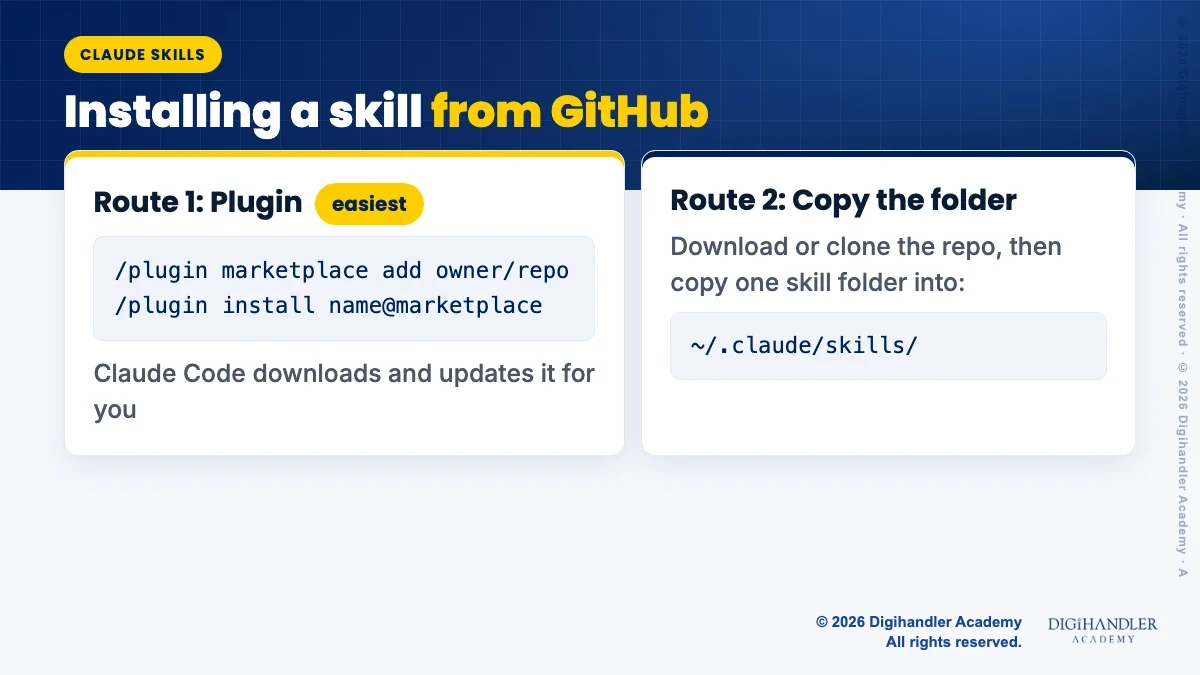
Where a skill lives depends on how you added it. Here is the short version.
~/.claude/skills/ in your home folder..claude/skills/ inside the project folder./plugin-name:skill-name./skills under "claude.ai sync".Usually you do not have to do anything. Claude reads each skill's description and opens the skill when your request matches. In Claude Code you can also call a skill by name: type / followed by the skill name, such as /internal-comms.
To check a new skill is really working, run through this short list.
/skills in Claude Code.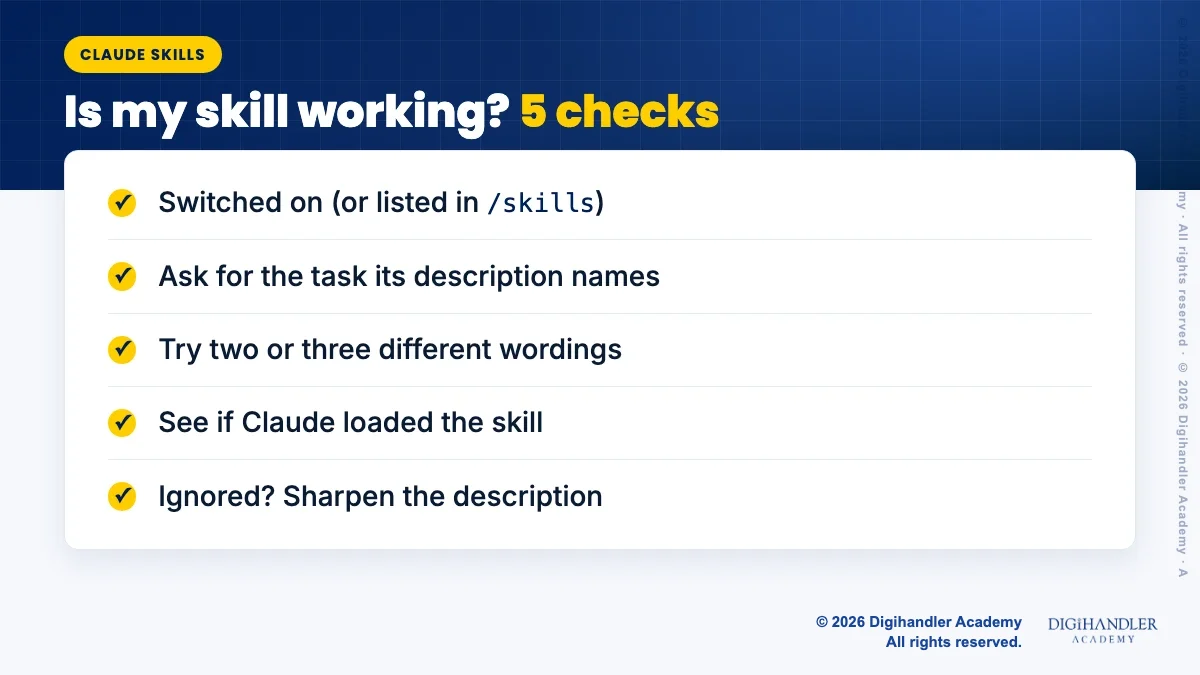
Turning a skill off keeps it for later. Deleting removes it. Pick the one you need.
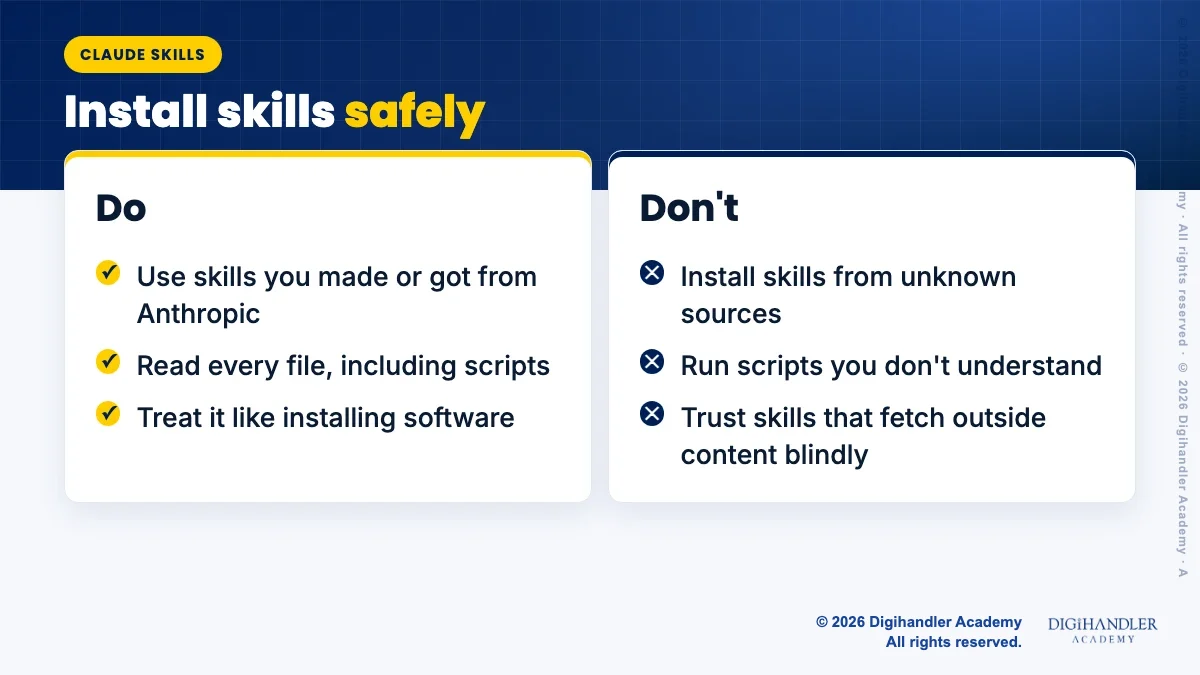
~/.claude/skills/ or .claude/skills/./plugin, open the Installed tab and choose disable or uninstall, or type /plugin uninstall plugin-name@marketplace-name.Anthropic's Help Center is direct about this: only install skills from trusted sources. Its developer docs define trusted as skills you made yourself or got from Anthropic.
The reason is simple. A skill can include scripts and instructions, and a bad one could tell Claude to run code or send your data somewhere you did not expect. In Claude Code, a skill can reach the internet like any other program on your computer.
Before you install a skill from someone else, open every file and read it, including any scripts. Be extra careful with skills that fetch content from outside websites. Treat it the same way you would treat installing new software. If you want a wider view of how AI tools fit into everyday marketing work, see our AI tools course.

Riya writes Digihandler Academy's guides and roadmaps. Every article is fact-checked and reviewed by Lovish Madaan, founder & trainer, who has run the Digihandler agency since 2018. More from Riya →
First turn on code execution. On Free, Pro and Max plans go to Settings, then Capabilities, and switch on "Code execution and file creation" (called "Create and edit files" in the newer layout). Then open Customize, then Skills. Anthropic's document skills for Word, Excel, PowerPoint and PDF already work automatically. To add your own, zip the skill folder so it sits at the top of the ZIP, click the + button, choose + Create skill, then Upload a skill, and pick your file. Make sure its switch is on afterwards.
Claude Code reads skills from folders on your computer, so there is nothing to upload. Put the skill folder in ~/.claude/skills/ to use it in every project, or in .claude/skills/ inside a project folder to use it only there. Each skill folder needs a SKILL.md file inside it. Claude Code usually notices new skills without a restart. Type /skills to see which ones it found, and type / plus the skill name to run one directly.
In Claude Code the easiest route is plugins. If the GitHub repository is set up as a marketplace, type /plugin marketplace add owner/repo, then install the plugin you want, or type /plugin to browse. For Anthropic's examples that is /plugin marketplace add anthropics/skills. The other route is to download or clone the repository and copy the single skill folder into ~/.claude/skills/. For the Claude app, download the repository ZIP, unzip it, then zip just the skill folder and upload it.
It depends on where you added them. Skills uploaded in the Claude app are stored in your account and listed under Customize, then Skills. In Claude Code, personal skills are stored in ~/.claude/skills/ in your home folder, and project skills in .claude/skills/ inside the project. Skills that come from a plugin live inside that plugin and appear as /plugin-name:skill-name. Skills you turn on in the Claude app also sync one way into Claude Code when you sign in with the same account.
Skills from yourself or from Anthropic are the safe choice. Anthropic's own guidance is to install skills only from trusted sources, because a skill can contain scripts and instructions that tell Claude to run code or access files. A harmful skill could leak data or take actions you did not expect. Before installing a skill from anyone else, read every file in the folder, including scripts, and look for anything that does not match what the skill says it does. Treat it like installing new software.
Where AI genuinely saves marketers time on real client work, and where it quietly makes things worse.
Read article →
What decides whether an AI assistant quotes your page, and the fixes worth doing first.
Read article →