AI graphic design without design skills: posters, mascots and ads
AI graphic design for beginners usually goes wrong in the same way: someone types a prompt, gets a striking image, and posts it as is. It looks impressive and nothing like their brand, and the next post looks nothing like the last one. The fix is not a better tool. It is a workflow. This is the one we teach in the AI graphic design and character creation module of our AI Masterclass, for people who have never opened a design app.
Split the job: AI for images, a layout tool for the design
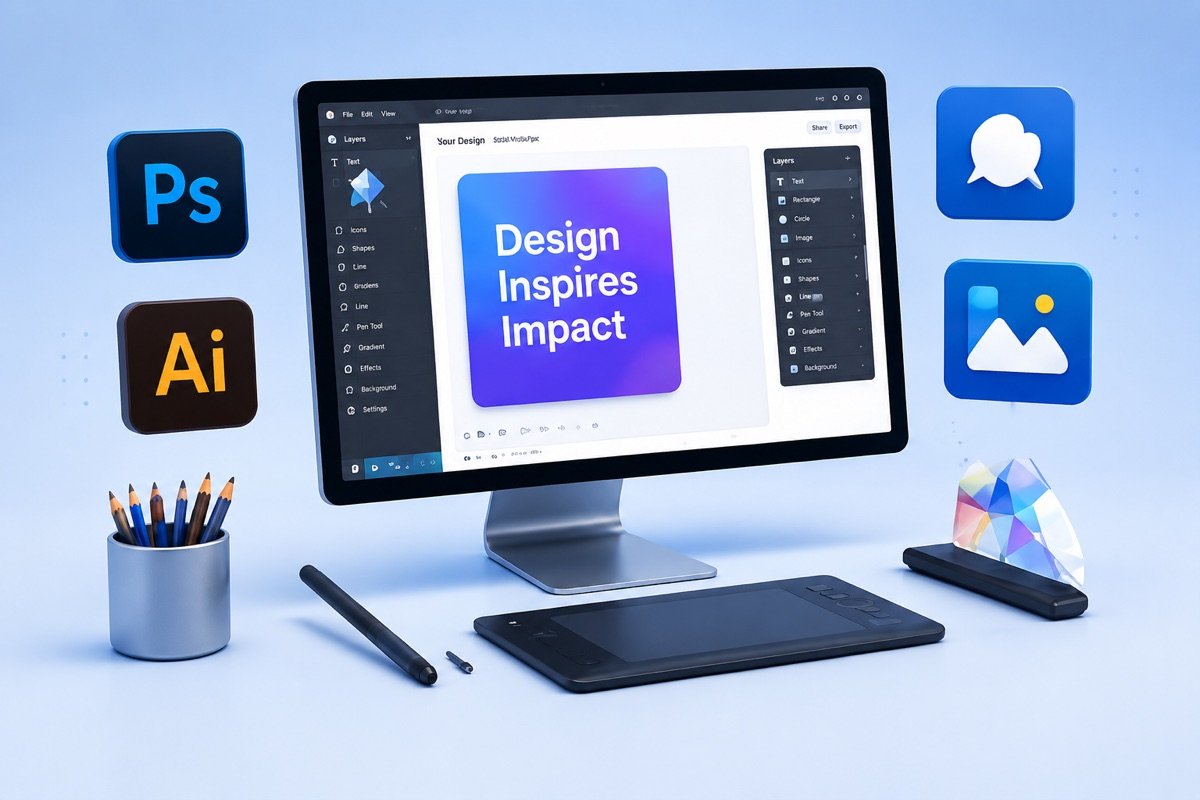
The most useful idea for a beginner is that a poster or ad is two separate jobs. One is making the picture: a background, a product scene, a character. The other is the design: where the headline sits, which fonts and colours are used, where the logo and the offer go. Image generators are good at the first and unreliable at the second.
So we use two tools with clear roles. Ideogram generates images, and it is better than most at handling short text inside an image when you need it. Canva is where the design gets assembled, with your real logo, your fonts, your brand colours and editable text that you can correct in seconds. Canva also has its own AI features for generating images, removing backgrounds and resizing designs, which fit naturally into this workflow. If you want a comparison of image generators themselves, our separate guide covers that; this post is about the process.
Step 1: set your brand colours and fonts once
Before generating anything, decide what your brand looks like. Pick two or three colours and write down their hex codes. Pick one font for headlines and one for body text, and make sure the headline font is readable on a phone screen. If the business already has a logo, take the colours from it. If it does not, keep it simple: a strong main colour, a dark neutral for text and a light background colour.
Save these in Canva’s Brand Kit if your plan includes it, or in a single reference design you duplicate every time. This step is what makes twenty AI-assisted posts look like they belong to one business. It also gives you language for your prompts: you can tell the image generator to use “deep green and warm cream tones” and get backgrounds that sit comfortably under your text.
Step 2: text-to-image prompts that give you usable images
A vague prompt gives a random image. A useful prompt describes the subject, the setting, the style, the lighting, the colours and the space you need for text. Beginners forget the last part most often, and then cannot fit a headline anywhere without covering the subject.
Generate four or more variations, pick the closest, and adjust one part of the prompt at a time rather than rewriting it. Save prompts that work in a document, grouped by use, so the next festival post starts from a tested prompt instead of a blank box.
- Subject — what is in the image, described plainly: a steaming cup of masala chai on a wooden counter.
- Style — photographic, flat illustration, 3D render, watercolour. Pick one and keep it across a campaign.
- Light and mood — soft morning light, bright studio lighting, warm festive glow.
- Brand colours — name the tones from your brand kit so the image matches the layout.
- Space for text — ask for empty space at the top or one side, and a clean background behind it.
- Format — set the aspect ratio for where it will run: square for feed, vertical for stories and reels.
Step 3: create a 3D brand mascot from a text description
A mascot gives a small business a recognisable face without anyone having to appear on camera. Write a short character sheet first: what the character is (a friendly owl for a coaching centre, a cheerful tiffin box for a food business), its personality, its colours from your brand kit, and one or two fixed details such as a scarf or a pair of glasses. Then prompt for a 3D cartoon-style render of that description on a plain background.
Generate several options, pick one, and treat that image as the reference. The hard part with AI characters is consistency: the same prompt will give you a slightly different character each time. Keep the exact prompt wording, use the tool’s reference-image or remix features where available, and repeat the fixed details in every prompt. Remove the background in Canva so the mascot can be placed on any design. Animating the mascot is a separate step that we cover in the video production module.
Step 4: assemble product posters and ads in Canva
For product posters, start with a real photo of the product. Customers need to receive what they saw, so do not let AI redraw the product itself. Remove the background, place the product on an AI-generated scene or a brand colour, and add a headline, one supporting line, the offer terms and a clear call to action such as call, visit or message.
Keep the text in Canva rather than inside the generated image, so spelling, prices and dates can be corrected without regenerating anything. Check the design at phone size before exporting, since that is where almost everyone will see it. Then use Canva’s resize option to make square, vertical and landscape versions for feed, stories and other placements, and check each one, because automatic resizing often pushes text too close to the edges.
What still needs a human designer
This workflow is enough for regular social posts, offer creatives and simple ads. It is not a replacement for a designer on work that has to last or carry legal weight. A logo needs to work at every size, in one colour and in print, and AI generators are poor at the clean, simple vector shapes a logo needs. Packaging, large-format print, signage and anything with regulated text, such as health claims or product labels, need someone who understands print files and compliance.
There is also the question of ownership. The rules on who owns AI-generated images, and whether they can be protected as trademarks, are still unsettled in many places. If a mascot or visual is going to become the core of a brand, have a designer refine it into an original, documented asset, and read the terms of the tools you used.
Disclosure in ads
Ad platforms have rules about synthetic and altered content, and these keep changing. Meta and Google both require disclosure in certain categories, such as political and social issue ads, when realistic images or videos have been digitally created or altered, and Meta may label AI-generated content on its own. Read the current policy for the platform before running a campaign.
Beyond the formal rules, the practical test is simple: would a customer feel misled? A stylised background or a cartoon mascot misleads nobody. A generated image of a product, a result, a premises or a person that does not exist can. Keep real products, real places and real people real, and use AI for everything around them.
Where we teach this
Common questions
Yes, for everyday social posts and offer creatives, provided you follow a fixed workflow rather than relying on one prompt. Set brand colours and fonts once, generate backgrounds or characters with an image tool, and assemble the final design in Canva with your real logo and editable text. What beginners lack is usually not skill but consistency, and a brand kit plus a few saved templates solves most of that. Complex work such as logos, packaging and print still benefits from a trained designer.
They do different jobs well. Ideogram is a strong image generator and handles short text inside images better than many alternatives, which helps with headline-style visuals. Canva is a layout tool: it holds your brand kit, lets you place real product photos and logos, keeps text editable and resizes designs for different placements. Using an image generator for the picture and Canva for the design means you can fix a spelling mistake or change a date without regenerating the whole image.
Write a fixed character description and reuse it word for word, including colours, clothing and one or two distinctive details. Generate a set of options, choose one as the master reference, and use the tool’s reference-image or remix features to create new poses from it where available. Save the best renders with backgrounds removed so you can reuse them across many designs instead of generating a new character every time. Expect small differences between generations; consistent use of the same master images hides most of them.
It depends on the platform, the ad category and what the image shows. Meta and Google require disclosure for realistic digitally created or altered content in certain categories, such as political and social issue ads, and Meta may add its own AI labels. Rules change, so check the current ad policy before launching. As a working rule, never use AI to show a product, result, place or person that does not exist as if it were real, because that risks misleading customers regardless of the policy.
More from the blog
AI SEO: how to get cited inside AI search results
Search is shifting from ten blue links to generated answers. What decides whether an AI assistant quotes your page, and the fixes worth doing first.
The power of a local business listing: the setup checklist we teach
For a shop in Rohtak, a properly set up Google Business Profile out-earns most paid campaigns. The exact checklist, in the order that matters.